Connecting Omnisend syncs your ambassadors into Omnisend automatically — existing ones when you save the key, and every new signup after that — so you can email them all from one place.
1. Create an Omnisend API key
If you don't have an Omnisend account yet, create one first, then open your API keys in Omnisend and click Create API Key.
Name it anything you like ("ConvertOut" works) and select This API key will only allow to add new subscribers.
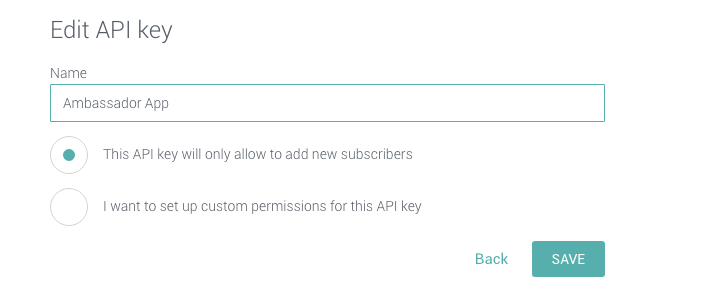
Click Save, then copy the key — it's a long string of letters and numbers.
2. Paste the key into ConvertOut
In ConvertOut, open the Emails tab, paste your key into the Omnisend field, and click Save.
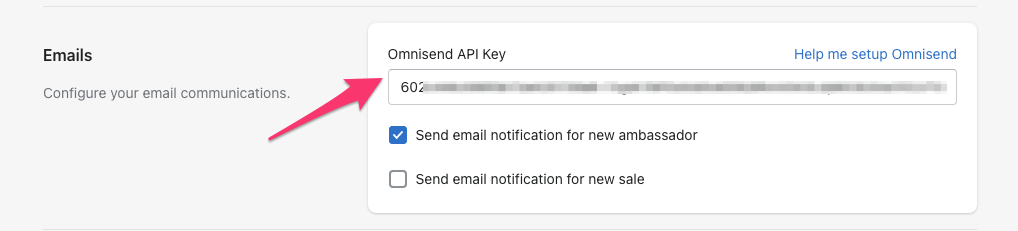
Every ambassador synced to Omnisend gets the ambassador tag.
3. Create an ambassadors segment
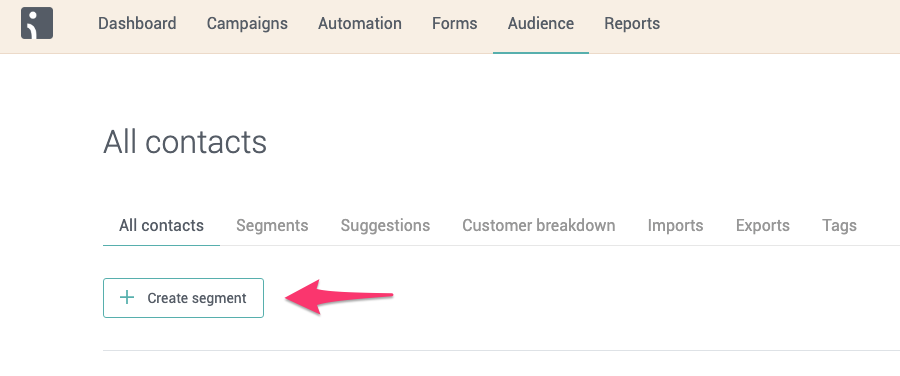
In Omnisend, open the Audience tab and click Create segment.
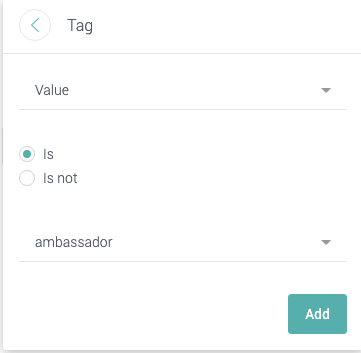
Search for Tag, set the options to Value, Is, ambassador, and click Add.
Click Save segment, name it "Ambassadors", and save again. You'll find it under the Segments tab.
4. Send a campaign
Go to the Campaigns tab in Omnisend, click New campaign, choose Email campaign, and pick your Ambassadors segment as the audience. Fill out the rest and send when you're ready.
If you haven't set up a sender address in Omnisend yet, you'll be asked to do that first. Omnisend's own help portal covers their campaign editor in depth.